From the PEARS homepage, hover over the Plan menu and click on Action Plans:

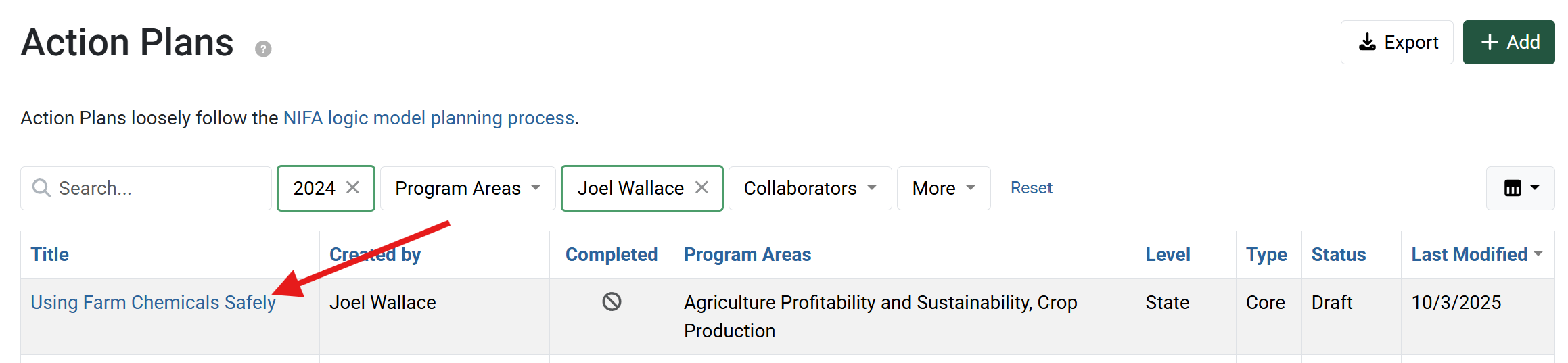
The Action Plans list displays. Select the action plan to be copied:
The action plan details display. Click the “More” button and select the applicable copy option.

A new action plan record is created, and an alert message confirms the copy was successful.
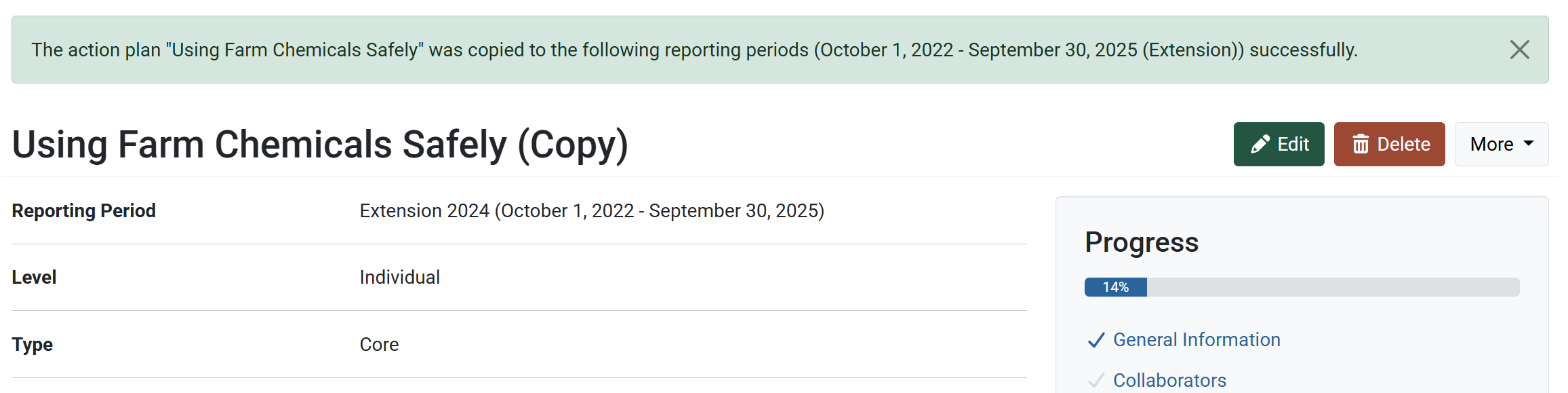
By default, “(Copy)” is added to the end of the action plan title. Change the title of the record, as needed.

After making changes, Click Save and continue to save the page and move to the next section, or click Save to save the current changes and view the record details.

Review the details listed on other sections of the action plan copy, to make sure all copied data is applicable to the new record. Edit the action plan details, as needed.
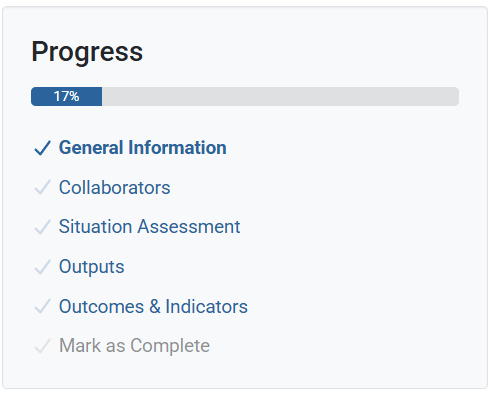
For more information on Action Plan fields, see documentation for each section: General Information, Situation Assessment, Outputs, or Outcomes & Indicators.
Copy an Action Plan
by Madalyn