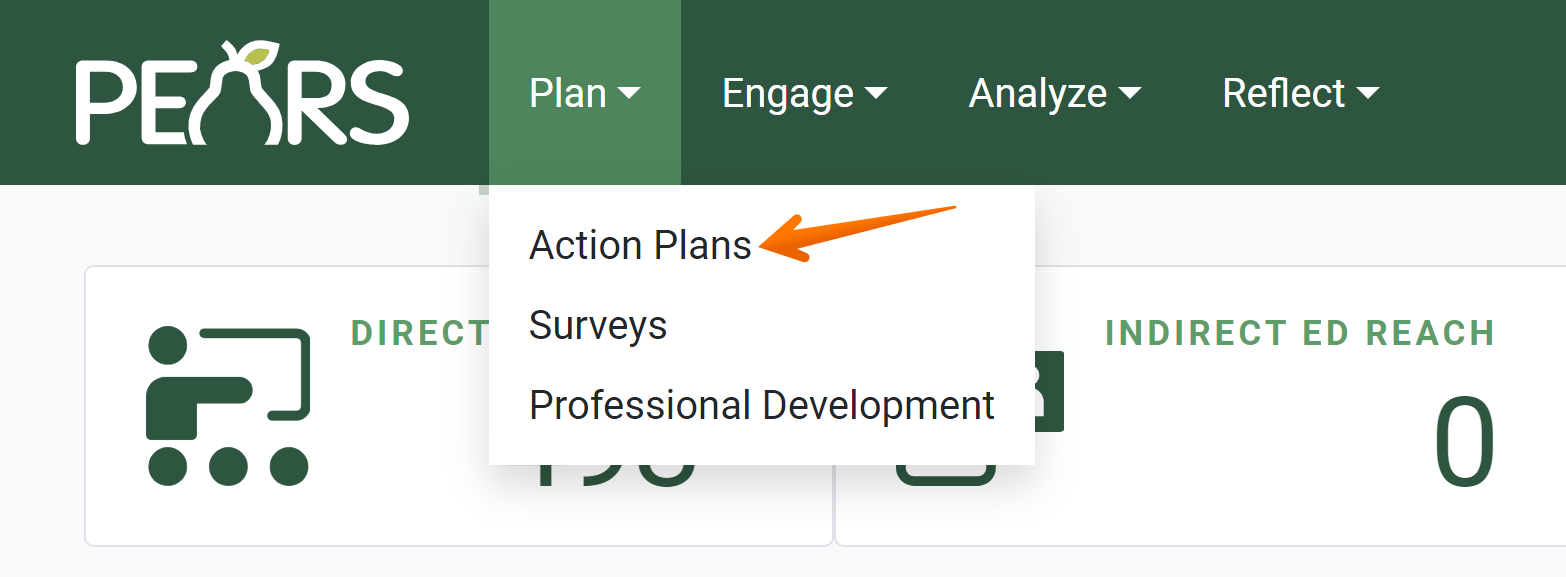
- From the PEARS homepage, hover the cursor over the Plan menu and click on Action Plans:
- The Action Plans list displays. Click the green Add button:

The General Information page displays.

- First, enter a Title for the action plan.

- From the drop-down list, select the Reporting period that applies to the action plan. The current reporting period and upcoming reporting period are listed.

- From the drop-down list, select the appropriate Level of the action plan (Individual, Unit, or State).

- From the drop-down list, select the appropriate Type of the action plan.

- Optionally, select a State level action plan to link.

- From the drop-down list, select all Program areas that apply to the action plan. Select multiple program areas or a single program area, as needed.

- From the drop-down list, select the Unit that the plan is targeting.

- In the field labeled Critical Issues (formerly Grand Challenges), check the boxes of all grand challenges that the plan targets.

- Optionally, in the Comments field, add any general information not captured in other fields.

- In the File Attachments field, upload related files as needed. To upload files, click Select to choose files from the computer’s file explorer. Alternatively, drag and drop files into the gray area.

You may upload many different types of files, including: Word documents, PDFs, Excel workbooks, jpg, png, and others. - Click Save and continue to save the page and move to the next section, or click Save to save the current changes and view the record details.

✓ TIP:
To remove a selection, click the x to the left of the item's name.
