- From the PEARS homepage, hover the cursor over the Engage menu and click Program Activities:
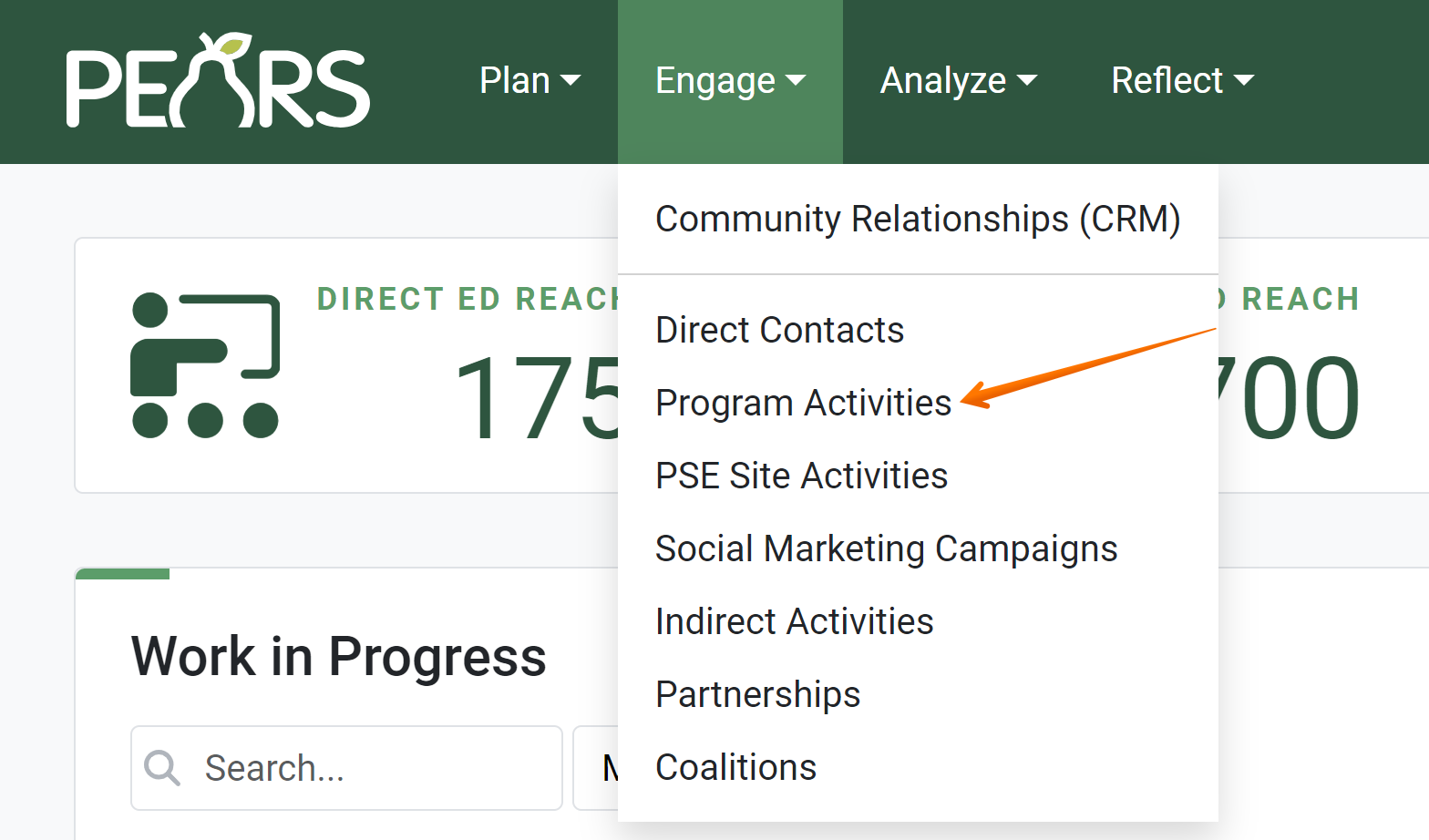
- The Program Activities list displays. Select a Program Activity to edit.

- The Program Activity details display. Click Evaluation:

- The evaluation page displays, listing attached surveys:

- To enter participant responses from paper surveys, click the first action button.

- The Add New Response form appears, showing survey questions:

Enter responses from a participant’s survey. - Click Save to save your progress or click Save and Add New to save the page and enter responses from a different participant.

Continue to save and add new responses until data from all participants has been entered. - As response data is entered, edit or delete responses as needed.
To edit response data, make changes to the current page and click the Save button at the bottom of the page.
To delete the current page of response data, click the Delete button at the top of the page.
- Once data from all participants has been entered, click Go Back to Attach Surveys to return to the surveys page.

- To attach another survey, click Attach Survey. To continue to the next section, click the Save and continue button.


NOTE:
If you are entering aggregate responses (rather than individual responses), the response form will be slightly different. For multiple choice questions, fields appear next to each option. Enter the total number of responses next to each option.
