From the PEARS homepage, hover the cursor over the Plan menu and click Surveys:
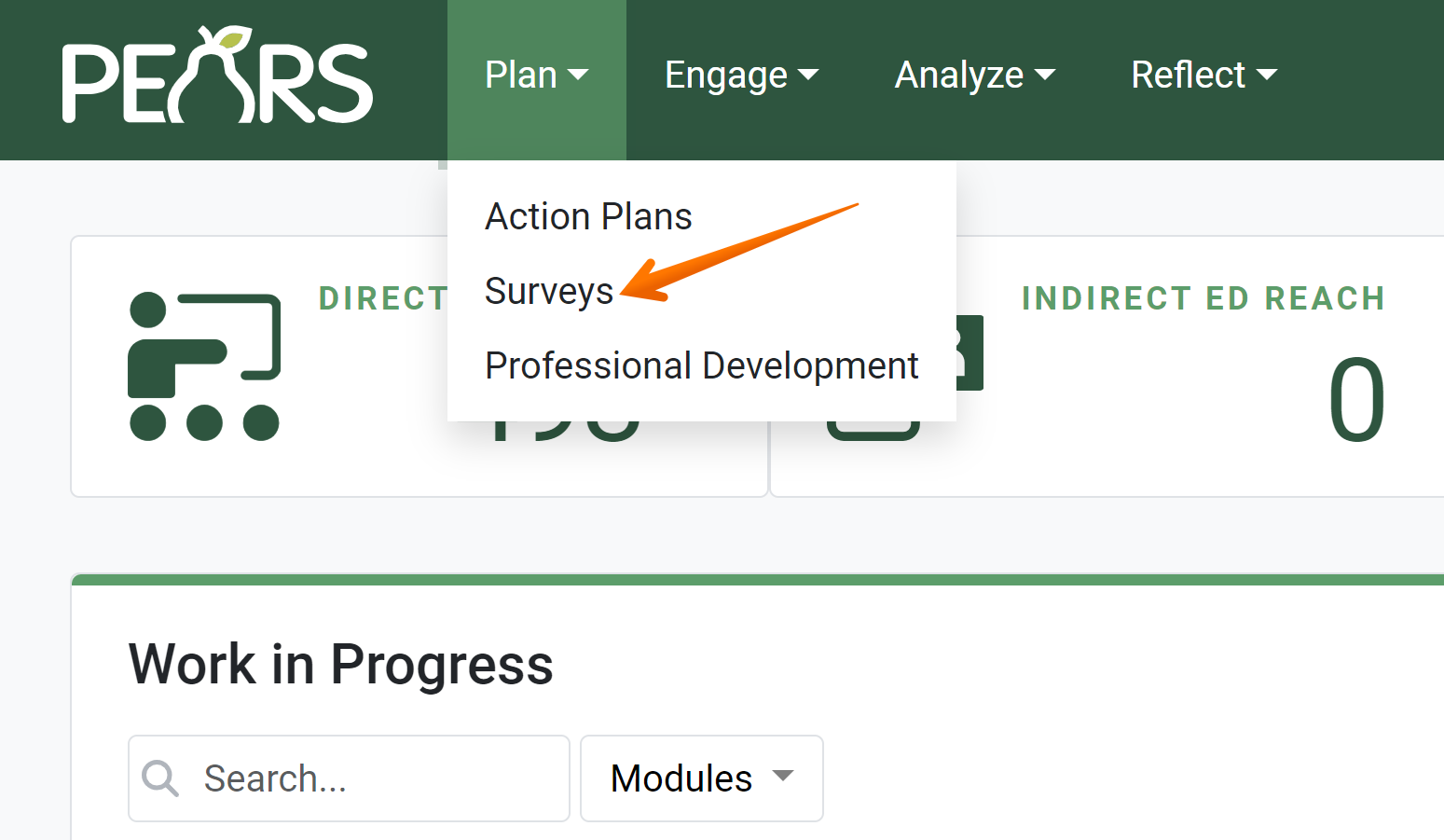
The Surveys list displays. Select a survey to copy.

The Survey details display. Click Copy.

The Copy page displays. By default, “Copy of” is added to the beginning of the survey name. Change the name of the record, as needed.

Data from the General Information section is automatically included in the copy. Optionally, select other data sections to copy to the new record, as applicable.

Review your selections, and click the Copy button.

The details of the survey copy display, and an alert message confirms the copy was successful.
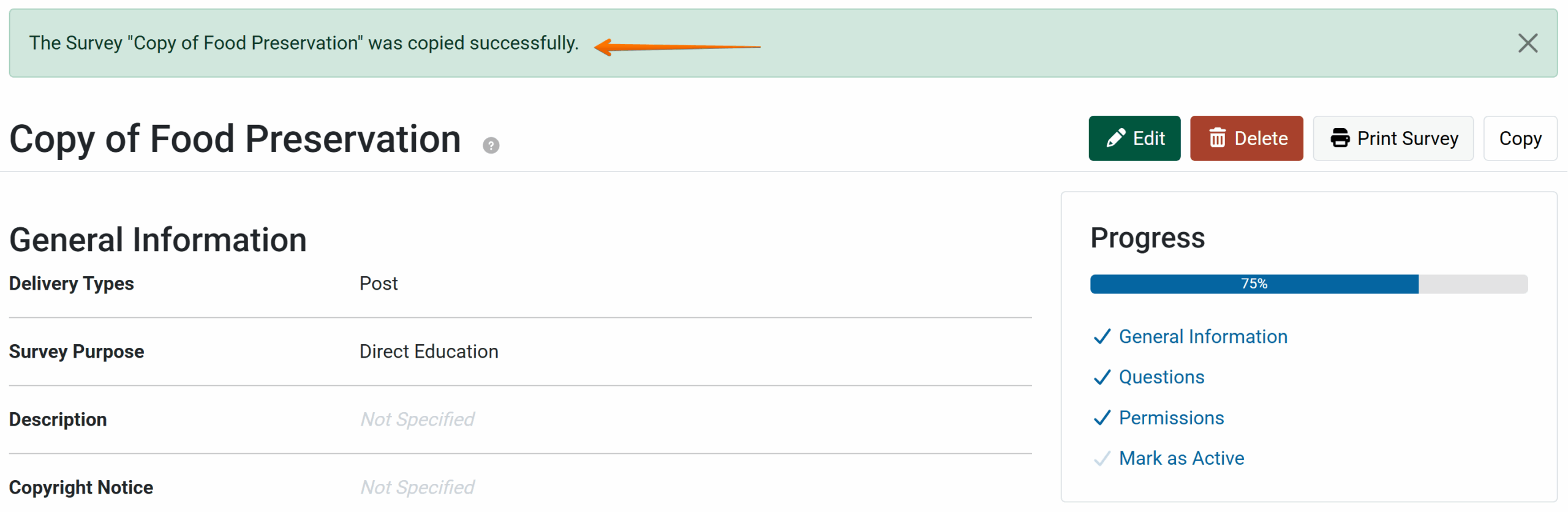
Review the copy details to make sure all copied data is applicable to the new record. Click the Edit button to make changes, if needed.
Copy a Survey
by Madalyn