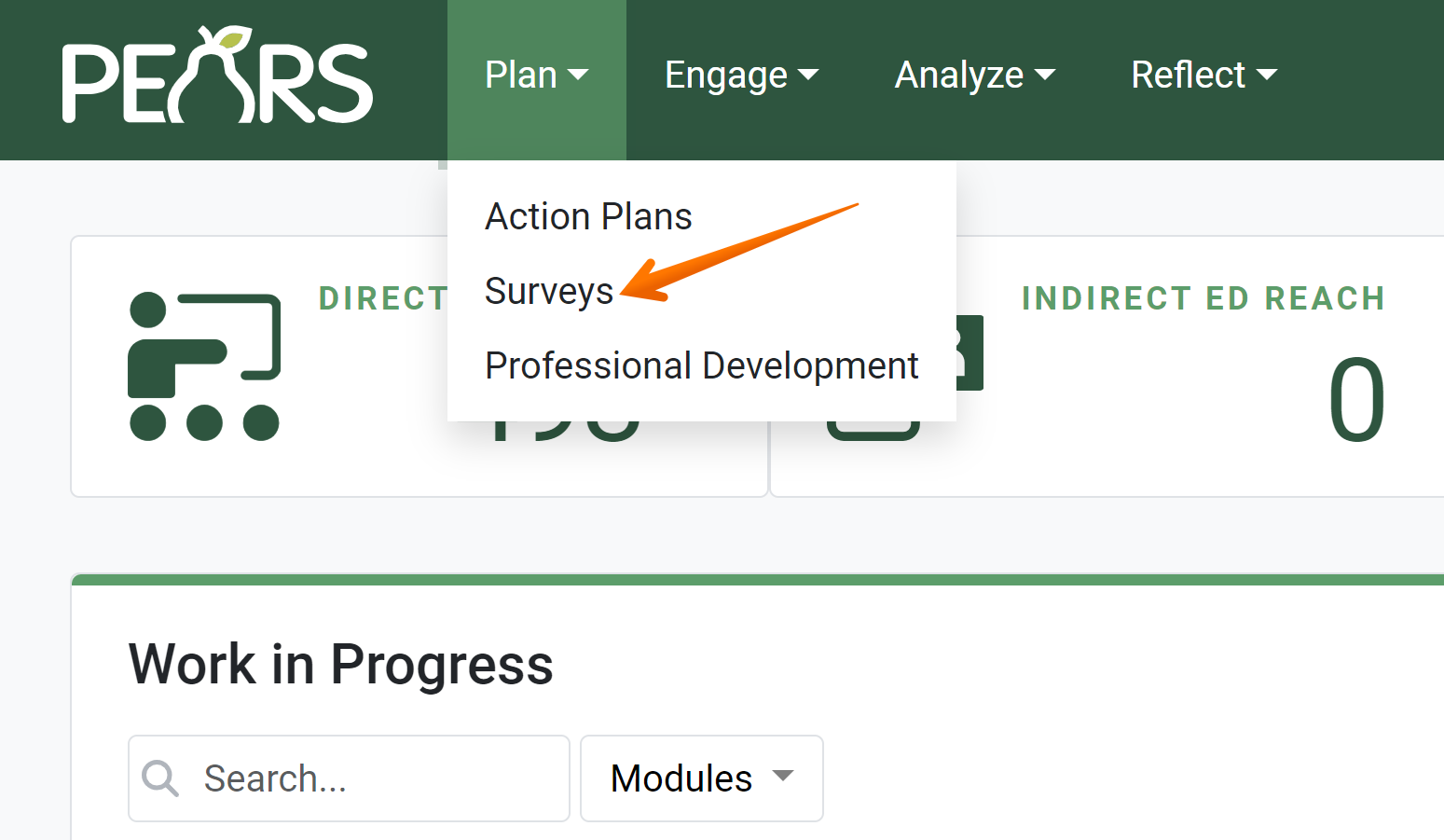
- From the PEARS homepage, hover the cursor over the Plan menu and click on Surveys:
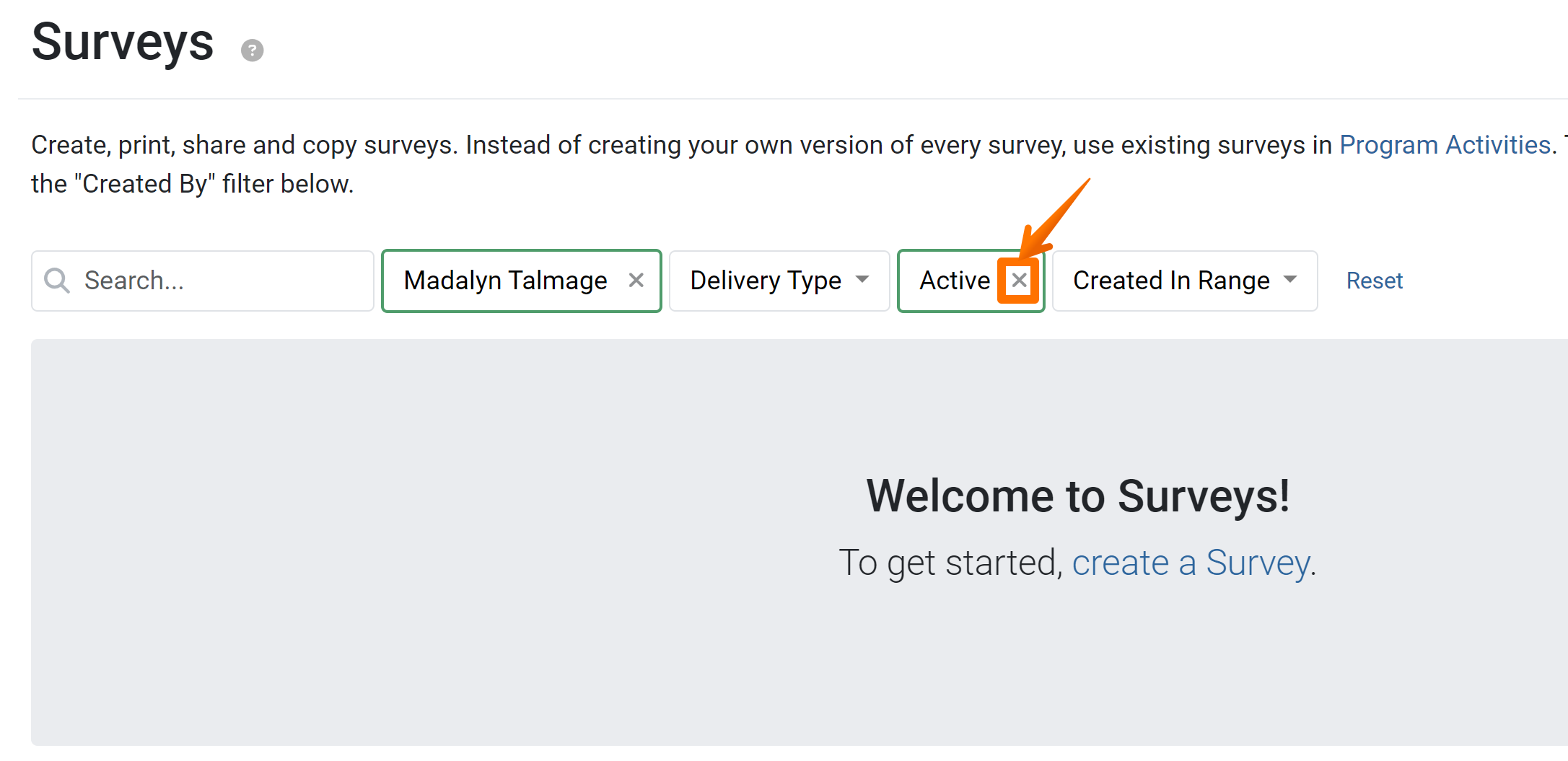
The Surveys list displays. By default this will show a list of active surveys only.
- If the desired survey is not yet active, click the x next to the Active filter.
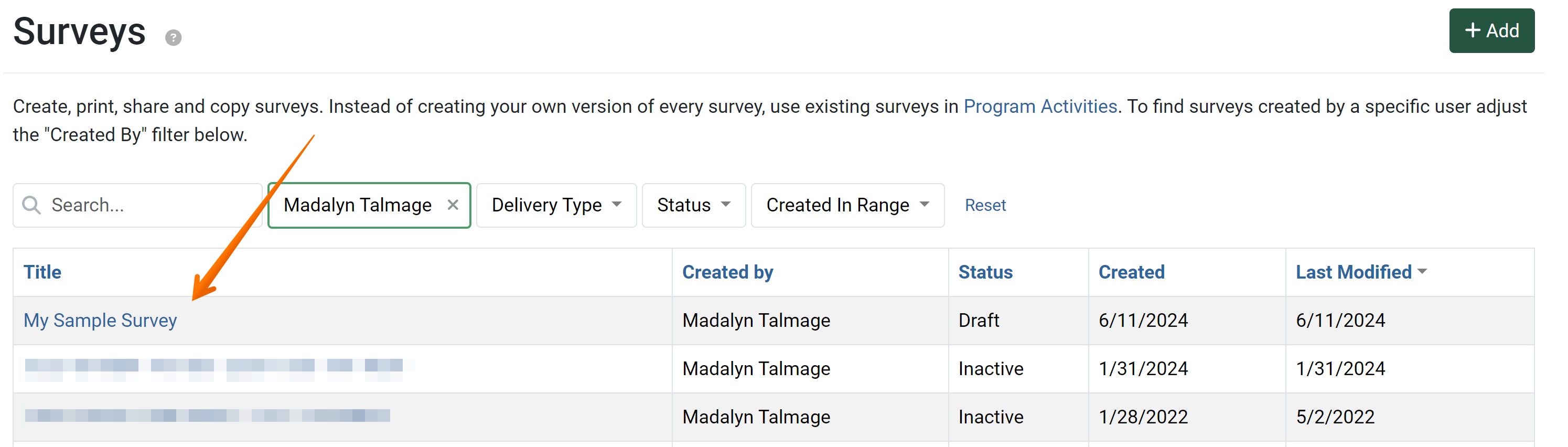
- Click the Title of the survey to be formatted.
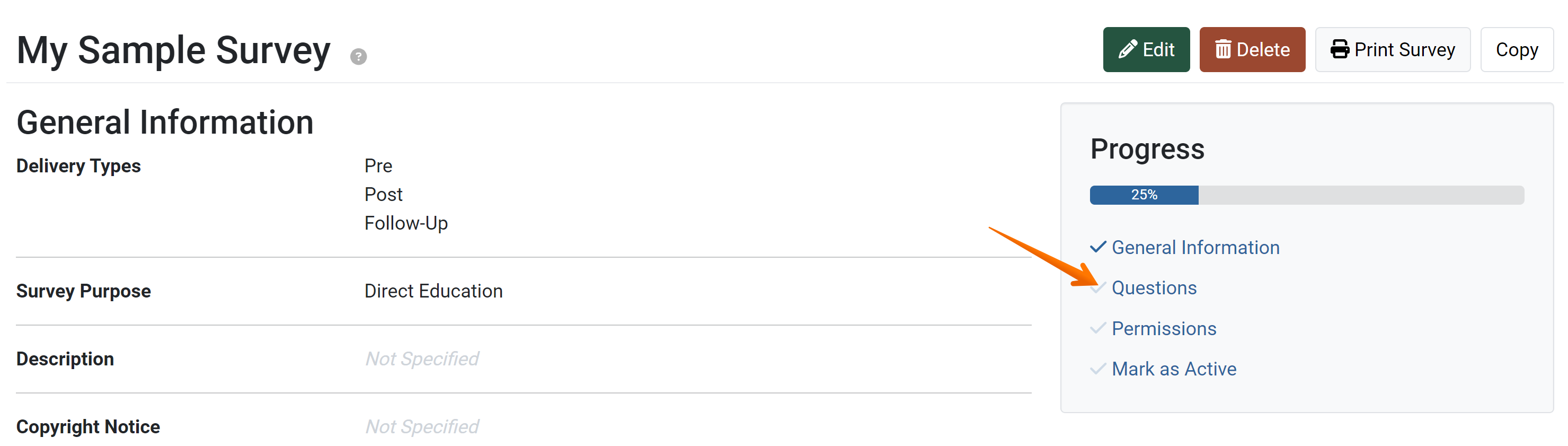
- The Survey Detail View displays. Click the Questions link in the progress pane.
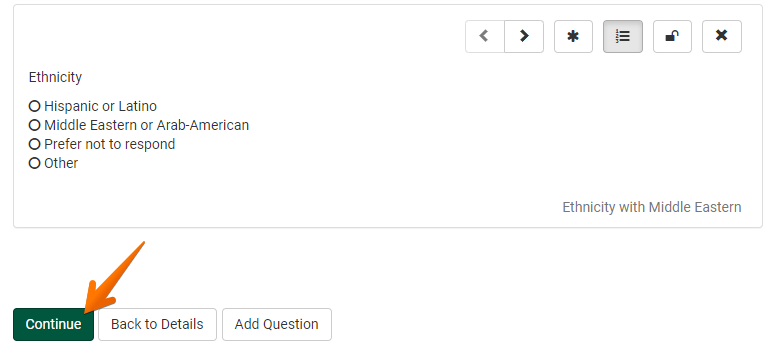
The Questions page is displayed. - Click and Drag questions into the desired order.

- Click the Not Numbered button of any headings or questions to not be numbered.

- Click the Increase Depth button of any question to indent the question.

- Click the Asterisk button to mark a question required

- Click the Lock button to lock the question

- Click the Continue button to proceed to setting up the survey’s permissions.
✓ TIP:
By default, questions and headings are numbered, indicated by the numbered list icon:

To remove numbering, click this icon. The numbering is removed, indicated by the list icon that does not include numbering:

To view the survey questions as they will appear when data is being entered, go to the detail view of the survey. The questions are displayed as a numbered or non-numbered list, based on the selection for each question.
To remove numbering, click this icon. The numbering is removed, indicated by the list icon that does not include numbering:
To view the survey questions as they will appear when data is being entered, go to the detail view of the survey. The questions are displayed as a numbered or non-numbered list, based on the selection for each question.