The Data Dictionary provides information about the tables in the data mart, including the columns, descriptions, and relationships.
-
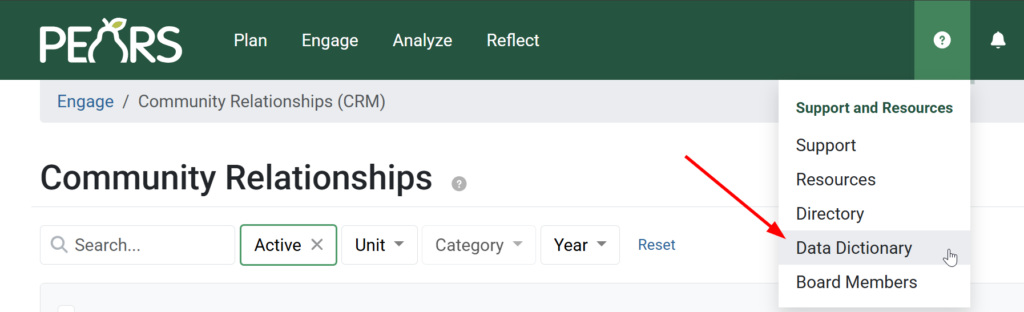
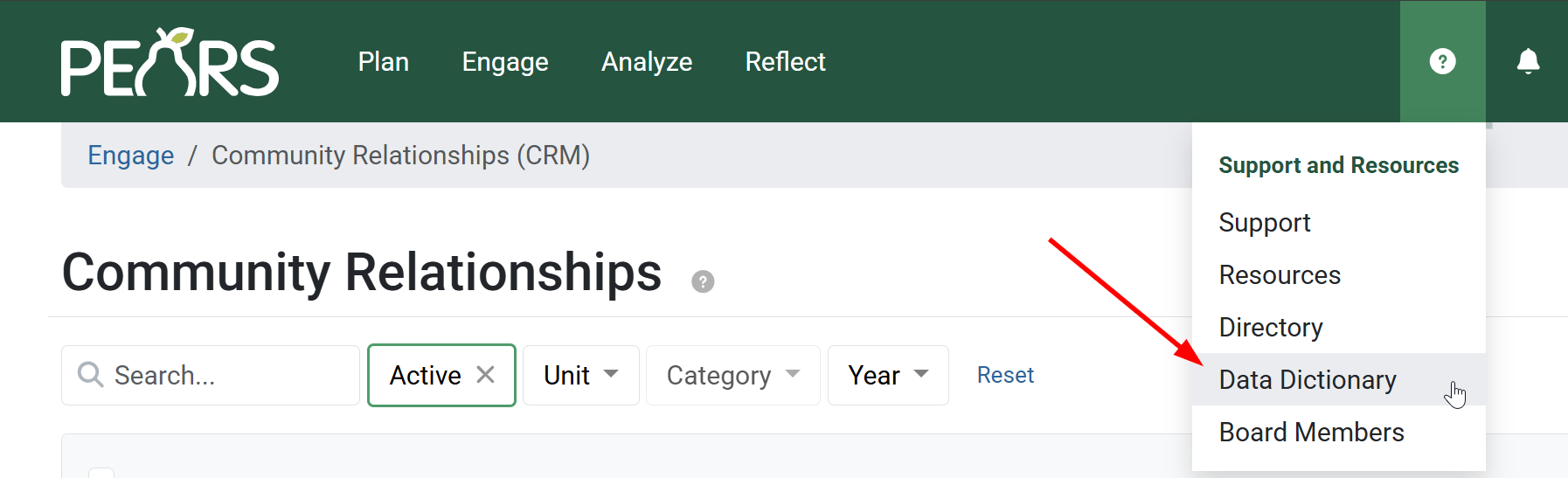
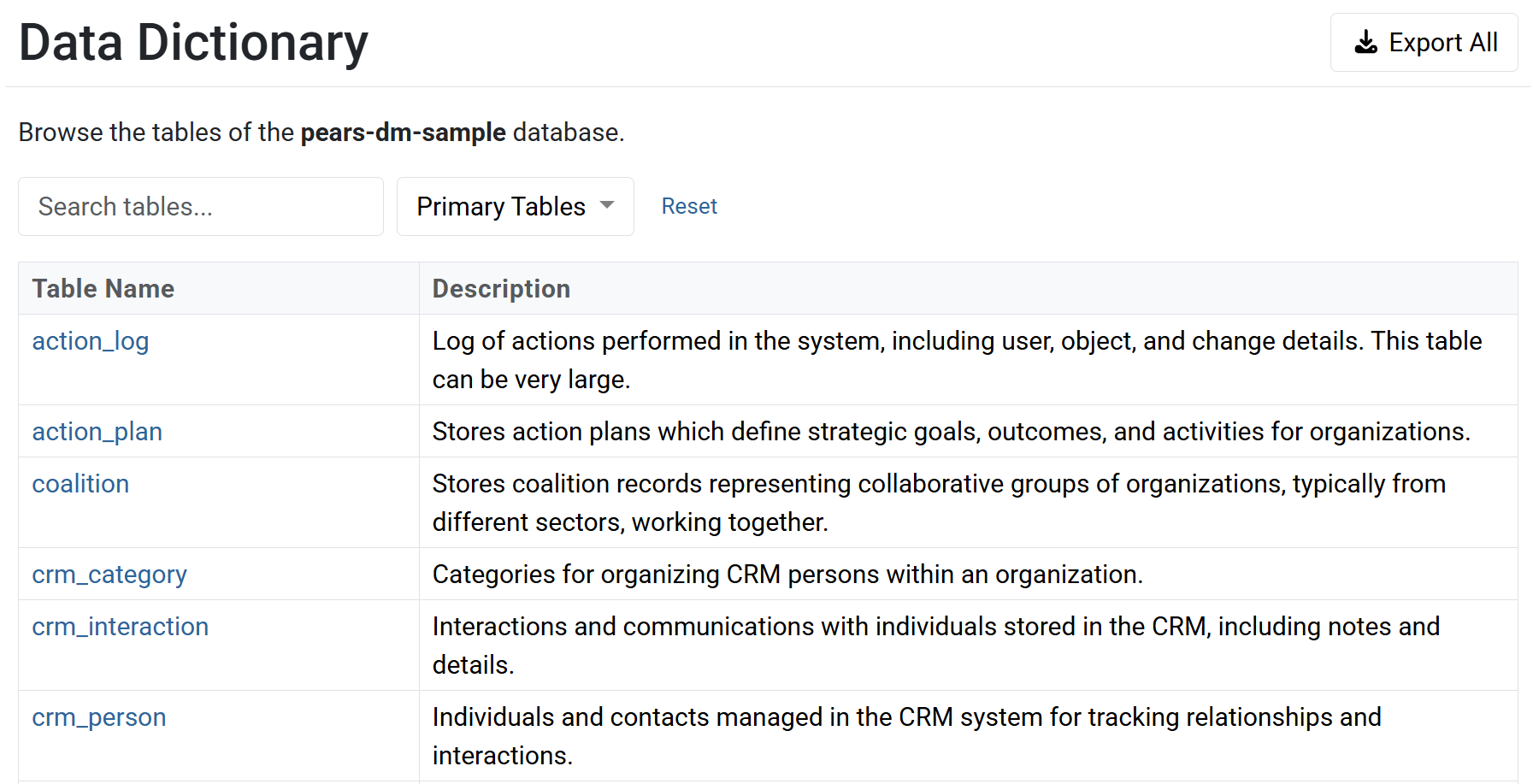
From the PEARS homepage, hover the cursor over the Support and Resources menu, displayed as a question mark icon, then click Data Dictionary.
- A set of tables is displayed. From this view at any time, you can click on a row to see the details of a table.
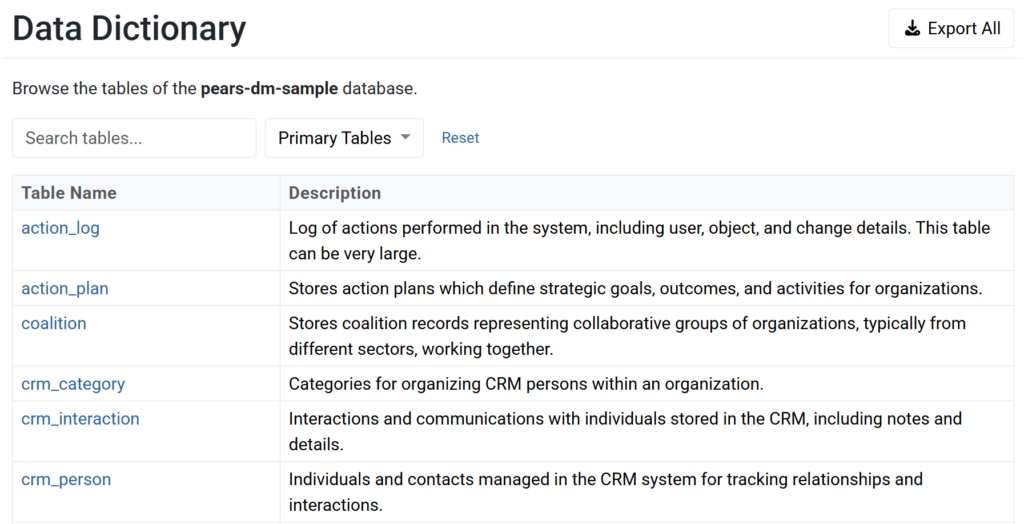
Note there are three options in the drop-down filter:
-
Primary Tables – Includes all high-level tables that can serve as the “starting point” for browsing related tables. For example, when opening
action_plan, there will be options to follow links to related tables such asaction_plan_collaboratororaction_plan_outcome. -
List Tables – Includes all tables with a
list_prefix. The list tables contain the options that appear in drop-down lists throughout PEARS, such aslist_countyorlist_program_area. -
Custom Tables – Includes all tables that are required to store responses to custom modules.
-
All Tables – All tables in the data mart will be displayed. This is helpful if you want to scroll through the complete set or know a specific table you would like to see. In the latter case, select “All Tables” then utilize the Search box to the left.
-
-
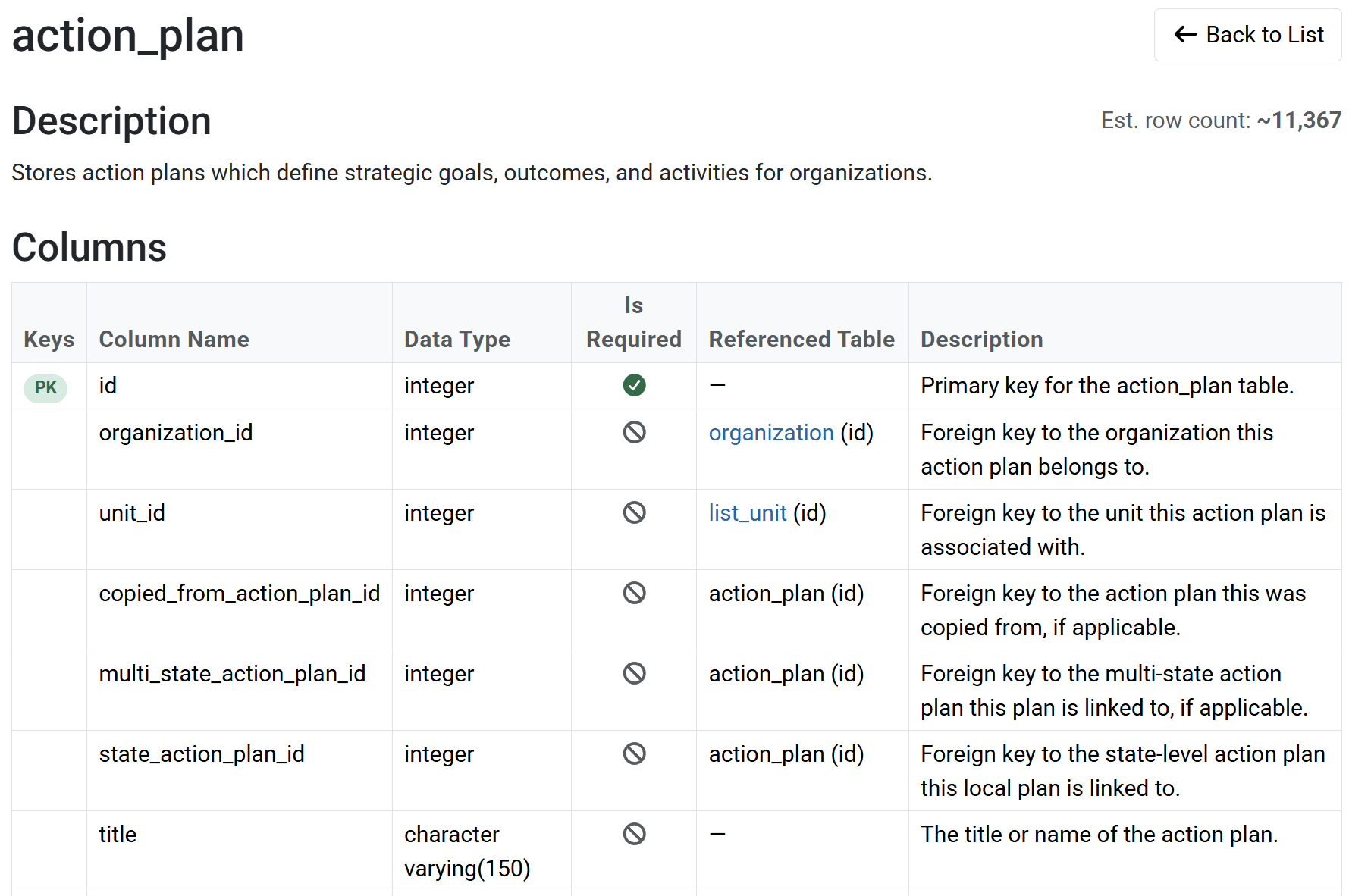
Once a table is selected and you click on its row, the table details will be displayed.
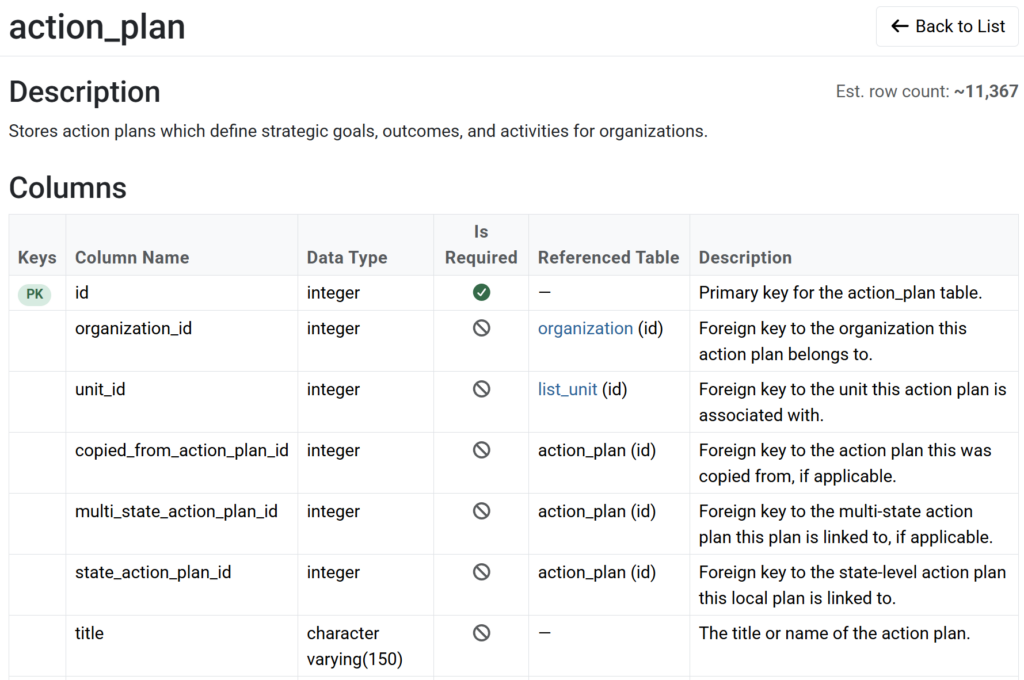
At the top of the page, you will see the description of the table and an estimated row count. Additionally is a tabular layout of the table’s columns. This section includes:
-
Keys – An indication of whether the column is part of a key. PK indicates a primary key and U1, U2, etc. indicates a unique constraint.
-
Column Name – The name of the column.
-
Data Type – The data type of the column, such as integer or text.
-
Is Required – Indicates whether a value is required in the column for every row. A checkmark indicates the column is required, which means the column is defined in the table with a
NOT NULLconstraint. -
Referenced Table – If the column is a foreign key referencing another table, the referenced table and the specific column referenced in that table is displayed. For example,
organization (id)shows that the column is referencing theidcolumn of theorganizationtable. -
Description – A description of the column.
-
-
Below the Columns section is the Incoming References section. This section lists all columns, typically from other tables, referencing this table. Each reference is implemented as a foreign key constraint in the database.

The following columns in this section are displayed:
-
-
Referencing Table – The table referencing the current table displayed above and which column in that referencing table.
-
Description – The description of the referencing table.
-
Referenced Column – The column of the currently displayed table that is referenced.
-
Multiplicity – Indicates the type of relationship between the referencing table and the referenced table.
-
-
Possible labels on the referencing (left) side:
-
0..* – zero or more – The referencing table may have multiple rows referencing a single row in the referenced table.
-
0..1 – zero or one – The referencing table can have no more than one row referencing a single row in the referenced table. This is determined by whether the referencing column(s) makes up a key in the referencing table.
-
-
Possible labels on the referenced (right) side:
-
0..1 – zero or one – The referencing column is not required. That is, the referencing foreign key column is nullable.
-
1..1 – one and only one – The referencing column is required, so for every referencing row, there will exactly one referenced. That is, the referencing foreign key column is not nullable.
-
-
-
-
For example, the incoming reference of
action_plan_outcome (action_plan_id)is shown below and provides the following information.
-
-
The
action_plan_idcolumn of theaction_plan_outcometable is referencing theidcolumn of the currently displayedaction_plantable. -
There can be zero or more rows in
action_plan_outcomereferencing a single row inaction_plan. -
Because
action_plan_idis a required field in tableaction_plan_outcome, there will be one and only oneaction_planrow referenced.
-
-


✓ TIP:
If you prefer to search and filter the data dictionary in Excel, click the button Export All to download an entire copy of the data dictionary into Excel.

✓ TIP:
At any time on the table detail view, click the button Back to List to navigate back to the list of tables to select another one.