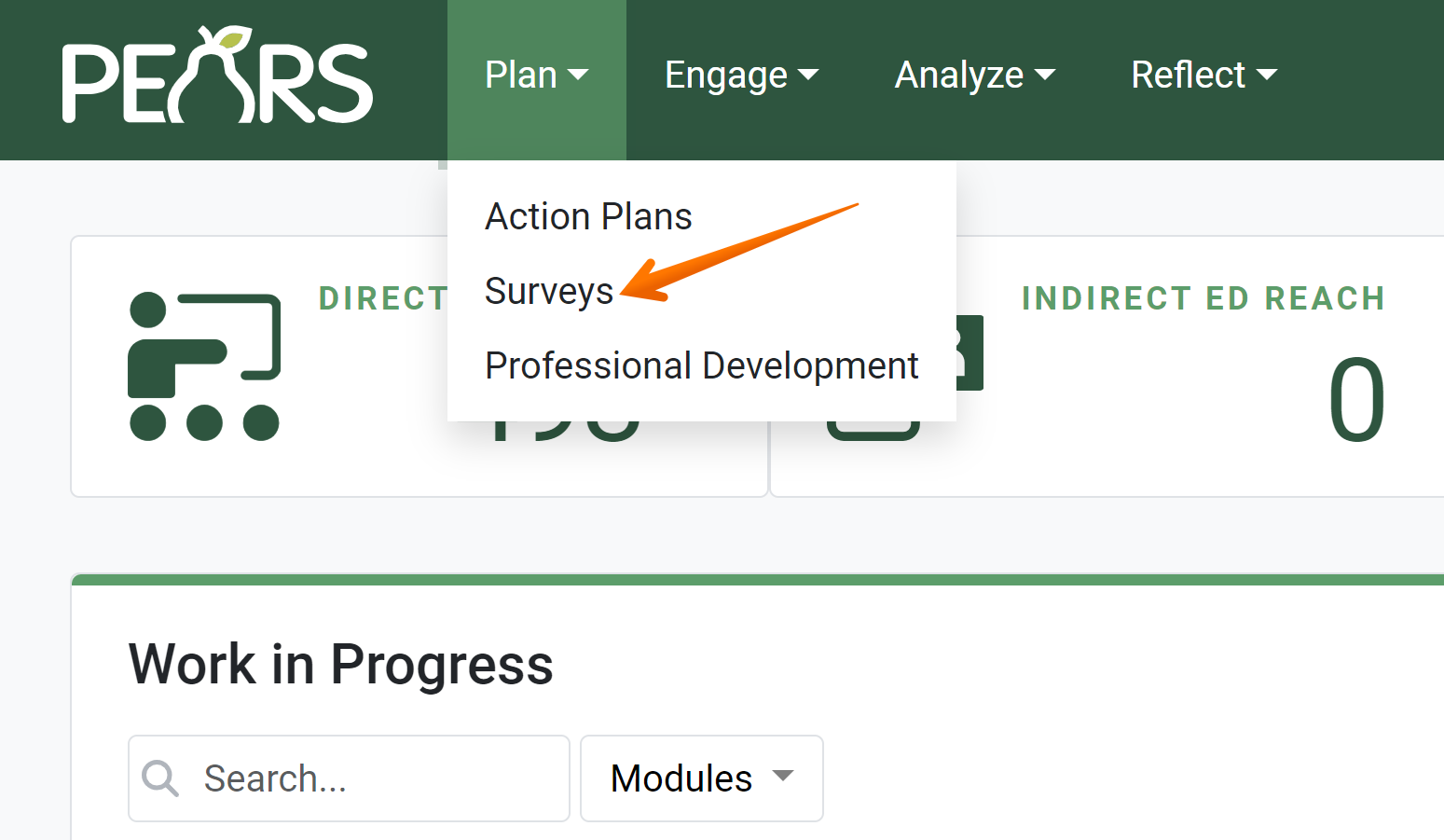
- From the PEARS homepage, hover the cursor over the Plan menu and click on Surveys:
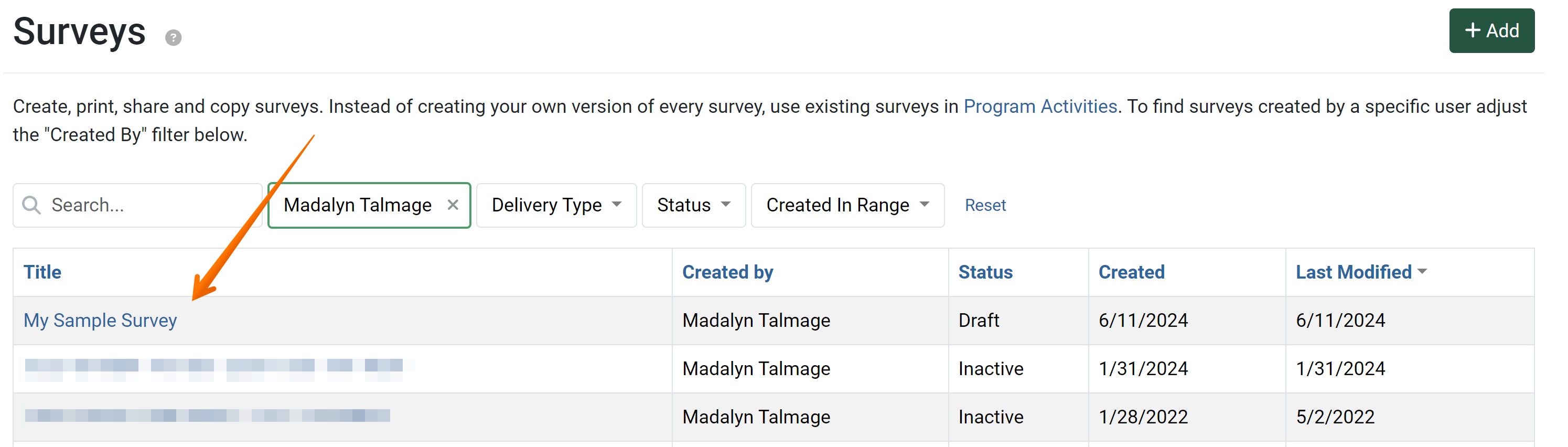
The Surveys list displays. - Click the Title of the survey to be marked as Draft.
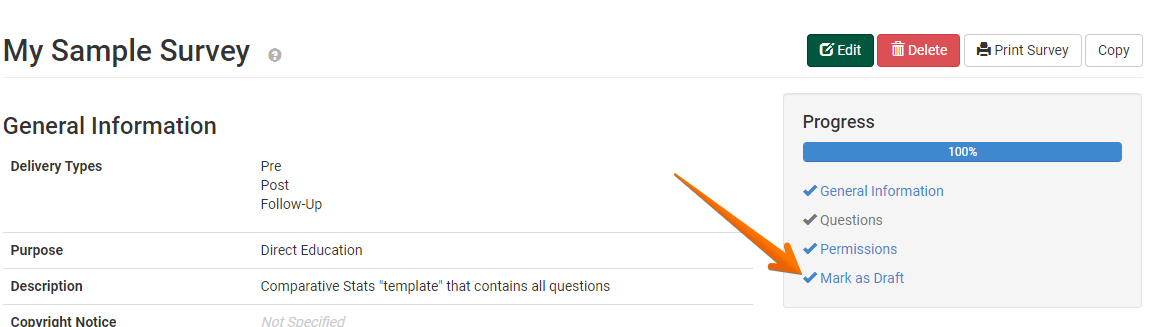
- The Survey Detail View displays. Click the Mark as Draft link.
The Mark as Active page is displayed. - Click the Mark as Draft button, enabling the survey to be edited. The survey cannot be used in a program activity until it is marked Active.

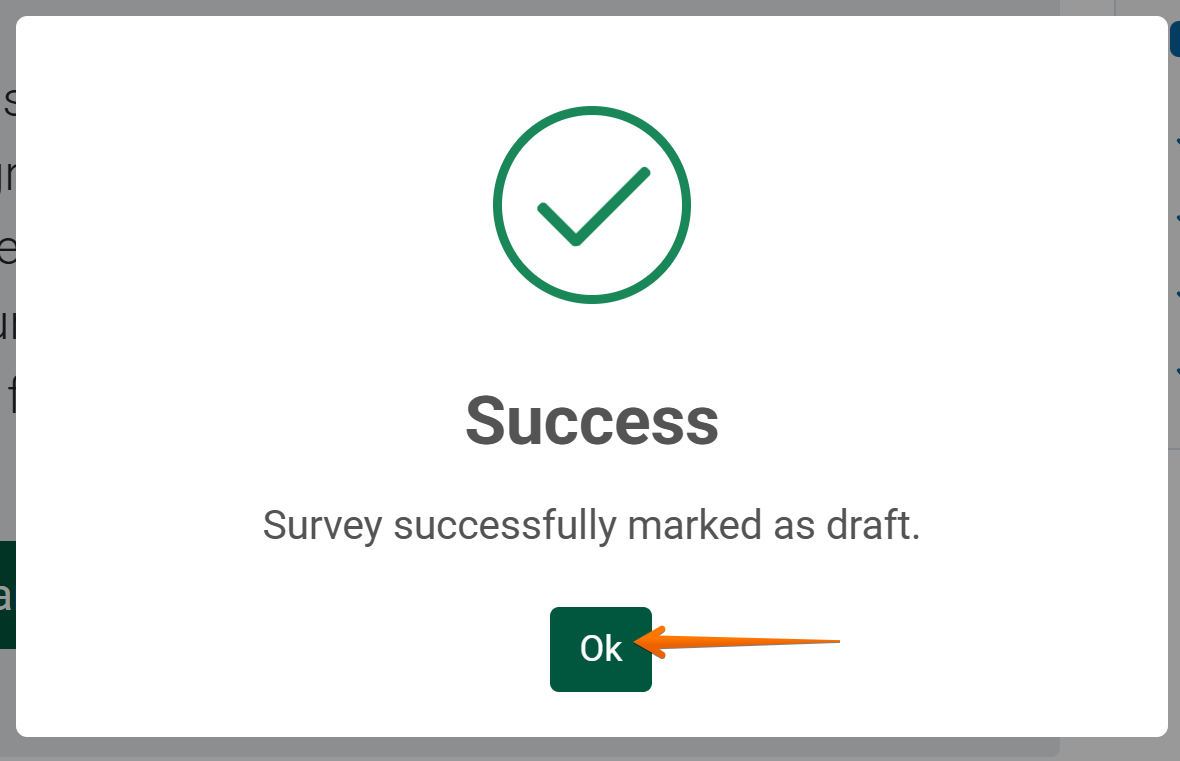
- The Success message box is displayed. Click the OK button to dismiss the message. The survey may now be edited.